Aggregated Skills Dashboard – Cancelling an Assignment
Access: Users assigned the Staffing Dashboard - Action Capable role
- Important: Managers and staffers must follow all facility and department staffing procedures when creating, editing, floating, splitting, and cancelling assignments. Past shift assignments may be edited up to
the Prior Days Editable limit as set on the Facilities > General Info screen.
The Aggregated Skills Dashboard displays real-time staffing and census data by facility, service line, department, shift summary period, and skill group. Understaffed shift summary periods are highlighted in red while overstaffed summary periods are
in yellow. The number in each cell indicates the number of employees with a given skill the period is under or overstaffed.
Cells outlined in blue indicate skills within the group are below and over target, but the sum of all skill differences within the group equals zero. For example, a summary period may be short one EMT and over
one P-Medic with all other skills on target. The sum of the differences within this skill group equals zero.
There may be occasions when an employee cannot report for a shift or they may be sent home due to a low census count. In these instances, the shift or a portion of the shift may be cancelled.
There are two methods for editing an cancelling an assignment.
- Click on a cell in the dashboard to view the Resource Assignments screen. Follow the steps below.
- Click on an employee's name in the Dashboard Daily Roster. Begin with step 4 below.
To cancel a full shift:
- Click the cell containing the shift to be cancelled.
- Click the Home Department tab to view a list of employees scheduled to work in the selected department.
- Click the employee’s name to open their assignment page.
- Click Cancel.
- Select a Cancellation Type.
- Facility Cancel
- Employee Cancel
- N/A for cancellations such as bereavement or jury duty.
- Employee Made Contact
- No Show / No Call
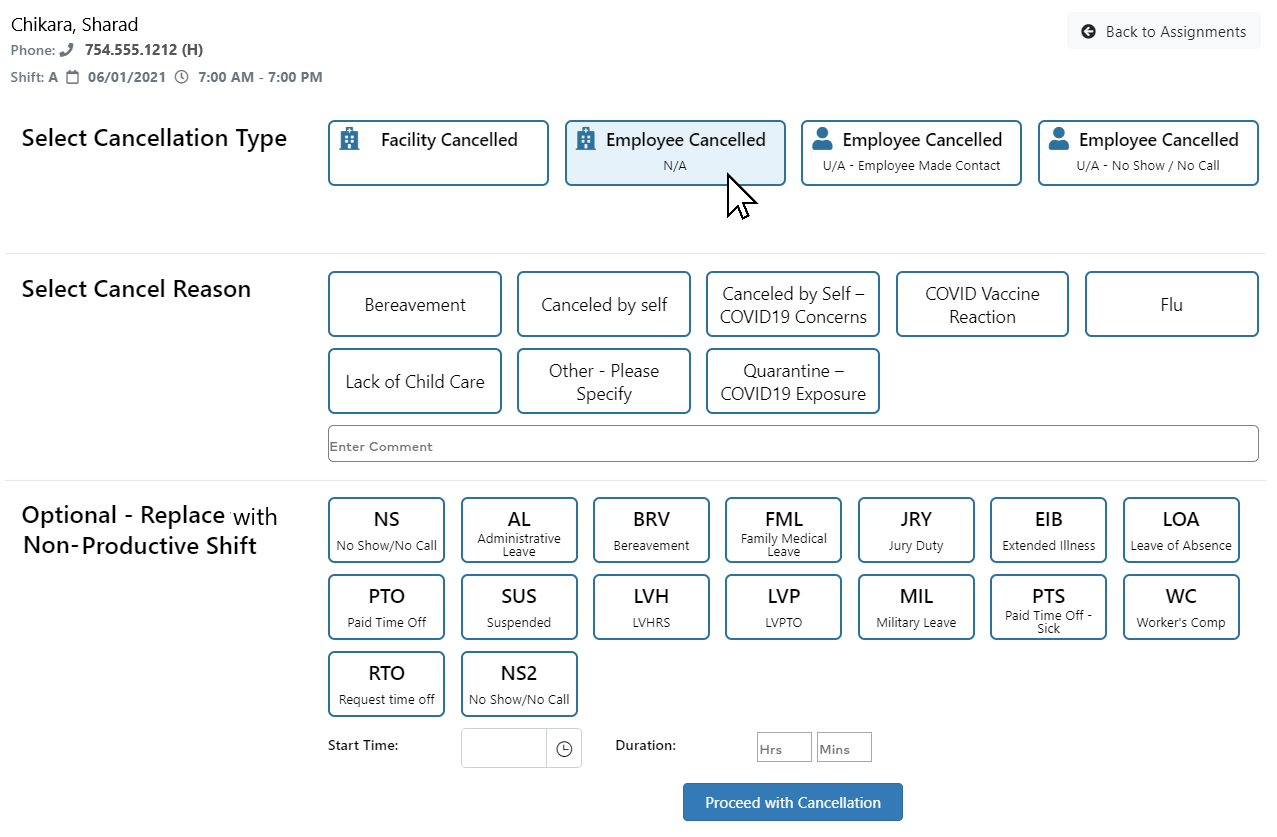
Cancellation Types and Reasons
- Select a Cancellation Reason.
- Enter Notes as needed.
- An optional step is to replace the cancelled shift code with a non-productive shift code. If this step is taken, confirm the cancel start time and enter a duration.
- If PTO is selected as a replacement shift, the employee's current PTO accrual displays.
- Click Proceed with Cancellation.
- The employee will be notified of this schedule change by SMS message if they have opted in. If they have not opted in, an alert message will display at the top of the screen.
To cancel a portion of a shift:
- Click the cell containing the shift to be cancelled.
- Click the Home Department tab to view a list of employees scheduled to work in the selected department.
- Click an employee’s name to open their assignment page.
- Click Split.
- Enter the Split Time and click Next.
- Enter a new Shift Code and edit the Assignment A fields as needed.
- Click Next.
- Enter a new Shift Code and edit the Assignment B fields to reflect the cancelled portion of the assignment.
- Change the shift Status to Cancelled.
- Select a Cancellation Reason.
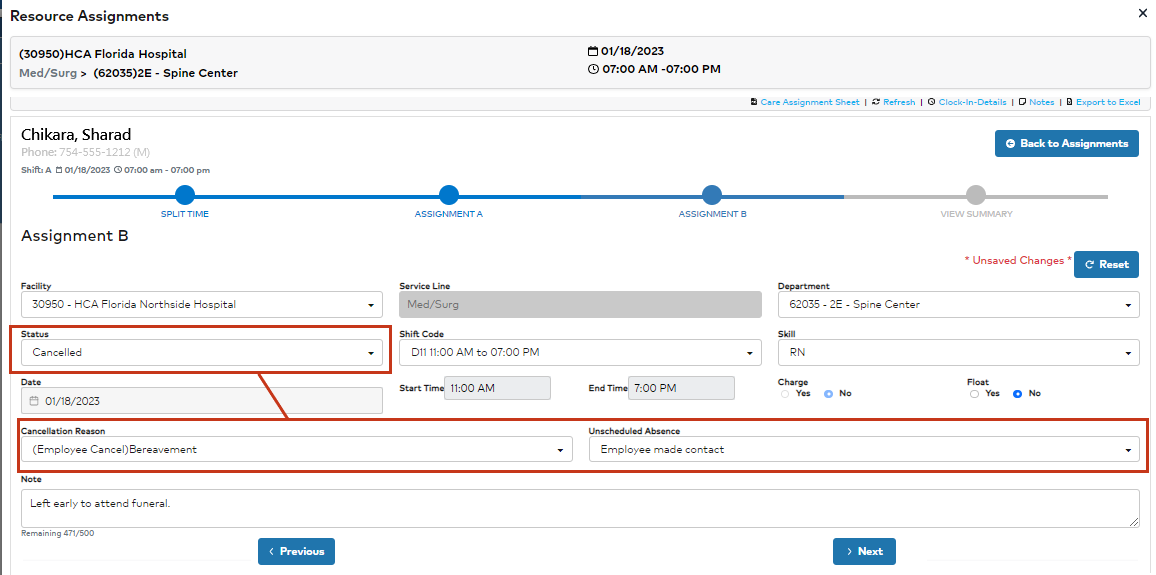
- Enter Notes as needed.
- Click Next.
- Confirm assignment settings, date, and time.
- Click Save & Finish.
You will be returned to the Home Department tab on the Resource Assignment page. If there are no additional assignments to edit, click Close at the top of the page to return to the dashboard view.
Click the Refresh icon to update staffing grid counts in the dashboard view. Staffing changes made in the dashboard are immediately effective. FS schedules and daily rosters will update to include these changes
when the screen next refreshes.
Additional Information
Aggregated Skills Dashboard - Editing an Assignment
Aggregated Skills Dashboard - Floating an Assignment
Aggregated Skills Dashboard - Splitting an Assignment
Aggregated Skills Dashboard - Cancelling an Assignment