
1) Click Employees on the Main Menu, then click Add.
-Or-
Click Browse Employees on the Main Menu and then click Add Employee icon. The page below will display.
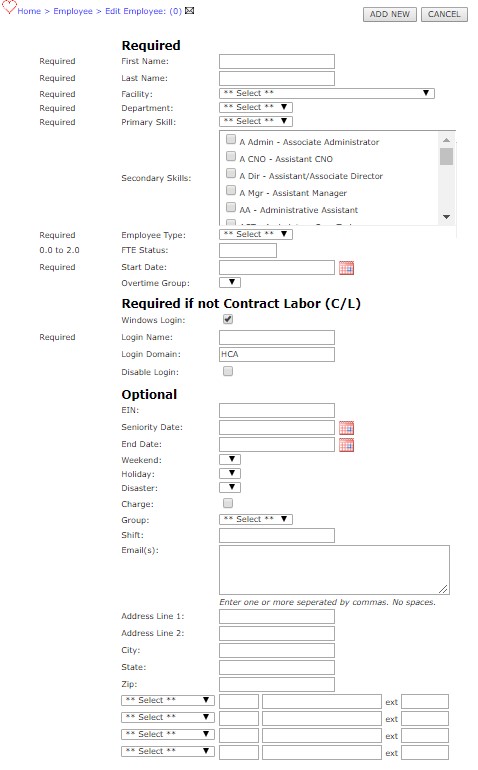
|
REQUIRED INFORMATION |
|
|
First Name |
Employee’s First Name
|
|
Last Name
|
Employee’s Last Name |
|
Facility
|
Facility the employee was hired by. |
|
Department Skill Level:
|
If you change the Facility or Department, the Skill Level box populates with the employee's current skill level if it is valid for the selected Facility and Department.
|
|
Primary Skill |
Employee’s primary skill in the department.
|
|
Secondary Skill |
Secondary skill is any skill the employee is capable of doing outside of their primary skill.
|
|
Employee Type |
(Core=FT/PT, PRN=Per Requested Need, WEP=Weekend Plan Staff, C/L=Contract Labor)
|
|
FTE |
Status The default Hours for a full-time Employee is 1.0. An authorized user can set the FTE Status for any Employee Type (C/L Core, PRN, WPS) to an FTE value over 1.0. The default Hours for an FTE Status of 1.0 is 40 Hours per Week (or Work Segment). An authorized user can set the FTE Status for a Facility to FTE 1.0 = less than 40 or up to 50 Hours. Start Date
|
|
Start Date
|
Employee’s start date or hire date. |
|
Overtime Group |
Overtime group the employee is assigned to.
|
|
REQUIRED IF NOT CONTRACT LABOR (C/L) |
|
|
Windows Login
|
To be used for Active Directory accounts. |
|
Login Name
|
(This is the unique ID or username, required for everyone except Contract Labor)
|
|
Login Domain
|
Optional and only needed for Active Directory accounts.
|
|
Disable Login |
Ability to disable the employee’s login.
|
|
OPTIONAL |
|
|
EIN
|
(Employee ID Number) |
|
Seniority Date
|
Seniority Date |
|
End Date
|
Date of termination |
|
Weekend |
(Assign one Rotation for each category. Rotations are facility-defined.)
|
|
Holiday
|
(Assign one Rotation for each category. Rotations are facility-defined.) |
|
Disaster |
(Assign one Rotation for each category. Rotations are facility-defined.)
|
|
Charge
|
(Select this check box if an employee is charge or relief charge capable.)
|
|
Group
|
(Employees can be assigned to groups based upon shift or as desired to reprioritize employee names. For example, Manager=0, Day Charge=100, Day Relief Charge=101, Day Staff=102, Evenings=200 Series, Nights=300 Series.)
|
|
Shift |
Ability to define shift
|
|
Email(s)
|
Enter one or more email addresses. |
|
Address Line 1:
|
Employee Address |
|
City:
|
Employee City |
|
State:
|
Employee State |
|
Zip:
|
Employee Zip code |
|
Phone: |
Ability to enter up to 4 phone numbers.
|
2) Click Save.
The employee information is recorded. You can edit (change) this information at any time. See procedures “Edit Employee Information”.
 NOTE NOTE |
|
For more information on how to search for an employee see procedures: Searching for an Employee. |